UNREAL ENGINE 5.8 · WINDOWS
Connect your game.
Make combat readable.
A practical guide to the kit, with complete Blueprint examples and plain-English steps.
Start here
What this kit does
Targeting & Combat provides target selection, character frames, overhead nameplates, cast bars, effect icons, floating numbers, a combat log and threat information. Think of it as the display and connection layer around your combat system.
What your game supplies
Your game controls ability rules, animations and multiplayer authority. The kit can display results from your existing health system. Alternatively, use its optional combat-stat and damage components. Choose one health owner: showing a number does not apply damage, and applying damage twice will double the hit.
Choose your route
Use the supplied demonstration to explore the controls. When connecting your own game, start with Player connection below. You do not need another BIS product to use these hooks. The editable Blueprint examples are teaching examples; placing one in a level alone does not connect your game.
This build
This guide targets Unreal Engine 5.8 on Windows. The Blueprint images are actual complete native editor graph views. The examples demonstrate local integration; they do not establish automatic multiplayer replication.
BP_BIS_TC_IntegrationExamplesInstall and find the examples
1. Keep a backup
Before adding the kit to your game, save your project and keep a recoverable copy. Use the plugin build that matches your Unreal version.
2. Add the plugin
For a manual installation, put the TargetingSystemKit folder inside your project's Plugins folder. Keep Content, Source, Resources and the descriptor together. Enable Targeting & Combat Information and its engine-bundled Text3D, Niagara, Enhanced Input, Control Rig and Animation Compression Library dependencies. Restart when requested. A source rebuild requires Unreal-compatible C++ build tools; the Blueprint hooks do not require writing C++.
3. Find the saved examples
In the Content Drawer, enable Show Plugin Content, select All and clear asset-type filters. Search BP_BIS_TC_IntegrationExamples for BIS01-BIS14 or BP_BIS_TC_CombatExtensions for BIS15-BIS26. Both are under TargetingSystemKit Content > TargetingCombat > Integration > Blueprints. Open the Blueprint, then use Ctrl+F with the individual BIS number, or select its full graph name in My Blueprint.
4. Work on your copy
Duplicate the example into your game Content before adapting it. Open it and choose a numbered graph from My Blueprint. Each tab contains one complete example. Ctrl+F searches the Blueprint: BIS01 takes you to player binding; BIS03 takes you to the ability-request receiver. Double-click a result to jump there.
5. Understand the red starting node
The red node is an event you call from your own game. It does not run automatically. Its inputs supply the objects and values used by the blue function node. White wires decide what runs next. Colored wires carry values. A Provider input means the particular object that owns that function; it is not a new asset you must buy.
Connect your player first
1. Give characters a targetable component
Open your player character Blueprint. Add a TSK Targetable Component. Do the same for enemies or friendly characters you want to select. Set their display name, level, disposition and maximum health. Turn on a resource display only when that character uses it. Flag bosses explicitly; a large health pool does not make an actor a boss.
2. Resolve the correct local player
From the PlayerController that owns the player, get the TSK Targeting HUD Subsystem for that local player. A subsystem is simply the kit's manager for one local player. Keep that reference for the examples that need the HUD Provider. Resolve CIE Combat Subsystem from the same local player for the combat log and meter. Avoid a global player-zero lookup when supporting more than one local player.
3. Bind the possessed character
Once the controller possesses its pawn, call Bind Host Player with that pawn's Targetable component. BIS01 shows the connection. Bind Host Player must receive your possessed local pawn, not an enemy or a different player. Its direct node returns true when binding succeeds. In your own graph, check this return value before continuing.
4. Copy your real values
When your game changes health, call Set Health on the matching Targetable component with the new current value. Set maxima before current values. Use Set Mana or Set Fury when applicable. For a simple check, set maximum health to 100 and current health to 75; the associated health display should read three quarters full.
5. Keep ownership clear
Binding enables host-game mode: the temporary demonstration bar and its combat simulation stop owning your player. Your ability system is still responsible for damage, costs and death. For your own targeting inputs, use TSK Targeting Component or the HUD selection hooks. Consume interface clicks before processing a world-selection click.
6. Reconnect after respawn
When your game replaces the pawn, bind the new pawn's Targetable component. A stale pawn is not accepted as the current player. Passing an empty player reference unbinds while keeping host-game mode on; it does not quietly restore demo health.
Explore the demonstration
The temporary bar
The demonstration has Auto Attack, Unbreakable, Ironhide and Kick. Kick plays the included kick animation and can be spent even when it interrupts nothing. It can interrupt eligible healer and mage casts; the Juggernaut's Gravefist and Gravebound Roar stay protected. The Juggernaut keeps its punch-only attack animation.
The Draugr and boss
Open L_Training under TargetingSystemKit Content > TargetingCombat > Demo > Maps. It includes Juggernaut, Gravebinder, Runecaller and the larger Ashen Warden boss. The healer and mage use mana; the Juggernaut uses its own resource. Select a placed actor to edit its combat stats, abilities, movement and respawn settings.
Death and restart
Defeated demo enemies remain dead for their configured Respawn Delay before recovering. The player stays down after death; Enter restarts the level. These demonstration rules do not take ownership of death in a game connected through Bind Host Player.
Choose a target
Use the configured targeting controls or click a targetable character. The player frame can select yourself. Right-click the selected-target frame for supported focus and marking actions. Friendly selection uses green. Choosing a target is separate from permission to attack it.
Preview versus gameplay
Settings previews help arrange an otherwise hidden panel. A visible preview is not proof that a real cast, threat event or boss encounter is connected. Test with events from your own game before relying on a panel.
Switch the training character
Press N to switch between Quinn and Manny while alive. Your health, cooldowns, target and position remain unchanged. The shortcut is disabled while a settings panel, menu or text-entry control owns input. It is a training-map convenience; your own game retains control of its player character.
Make the display suit your game
Open the settings
Use the Targeting & Combat launcher. The targeting pages include Targeting, Global Appearance, Player Frame, Target Frame, Party Frames, Nameplate Layout, Nameplate Text, Nameplate Bars, Selection Ring, Buff / Debuff Icons, Layout & Profiles, Ability Catalog, Combat Text and Text Colors.
Change the right control
Global appearance affects the overall style; a frame page adjusts that particular surface. Use Nameplate settings for floating enemy labels, not the fixed target frame. Keep the thin resource bars distinct from health. Use Buff / Debuff Icons for effect sizes. Combat Text adjusts the floating-number presentation; Text Colors changes its palette.
Arrange hidden panels
Use the combat panel controls and Idle Panels preview when arranging cast bars and other normally inactive panels. Turn the preview off to judge ordinary behavior. Enable or disable the relevant panel separately; hiding a panel should not change gameplay.
Save deliberately
Use Layout & Profiles for targeting profiles. Existing saved choices can take precedence over new project defaults. Combat presentation stores its own layout choices. Use the relevant Save or Reset control and read its scope. Reset appearance, reset positions and reset everything serve different purposes. Do not delete the project's Saved folder just to change a layout.
Set project defaults
Stop Play, then inspect Edit > Project Settings > Plugins for the Targeting and Combat pages. These are the starting choices for your project. When checking a new default, account for existing saved profiles; do not overwrite player data accidentally.
A reliable order for your own combat
Request
Your button asks to use an ability, identified by a stable name such as Game.Fireball. The request event tells your game which ability and selected actor were requested. It does not guarantee success.
Validate
Your game checks that the player can act, that the target and range are valid, and that enough resources and cooldown time are available. In multiplayer, your authoritative server makes the gameplay decision.
Cast and resolve
Start the actual cast and feed its state to the kit. When your game delivers the ability, apply damage or healing once. If it is cancelled or interrupted, stop any pending delivery in your own system.
Display
Copy the new health/resources, update cooldowns and effects, show the actual damage or healing number, and send the resolved combat event to the log/meter. Add threat separately if your rules call for it. These are distinct jobs; a floating number must not apply damage a second time.
COMPLETE BLUEPRINT EXAMPLE 01
Connect your player
BIS01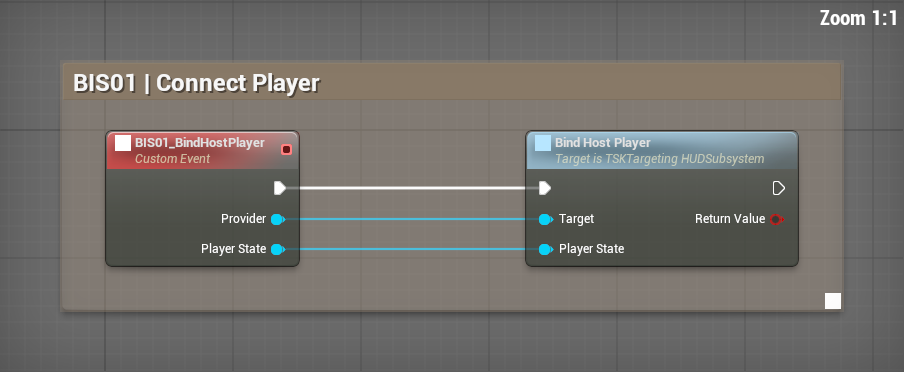
What to connect
- Get the TSK Targeting HUD Subsystem from the owning local player. Connect it to Provider.
- Connect the currently possessed pawn's TSK Targetable Component to Player State.
- Call this example after possession. For your production graph, inspect Bind Host Player's return value and handle a failed binding.
The player display reads the bound pawn's values. Rebinding a new pawn is required after replacement.
COMPLETE BLUEPRINT EXAMPLE 02
Ask to use an ability
BIS02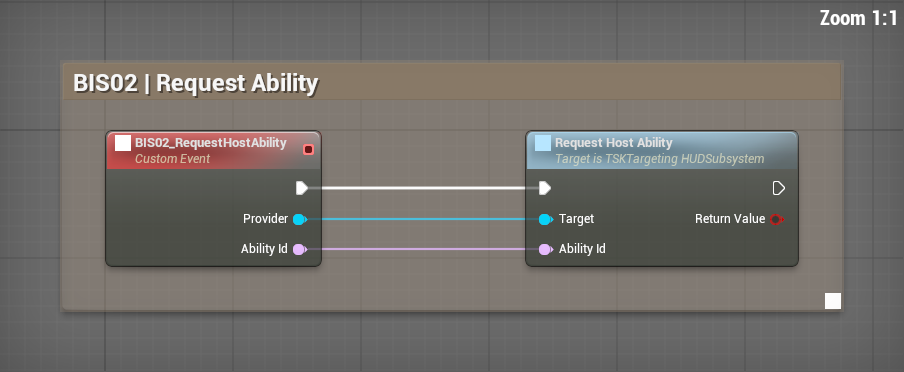
What to connect
- Connect the same local HUD manager to Provider.
- Supply a stable Ability Id, for example Game.Fireball. Use the same ID in your own catalog, button and handler.
- Call from your button or input. Connect BIS03 first. Your handler checks whether the requested ability may run.
The request reaches your listener with the current selected actor. No damage or cost is applied by this request.
COMPLETE BLUEPRINT EXAMPLE 03
Receive the request in your game
BIS03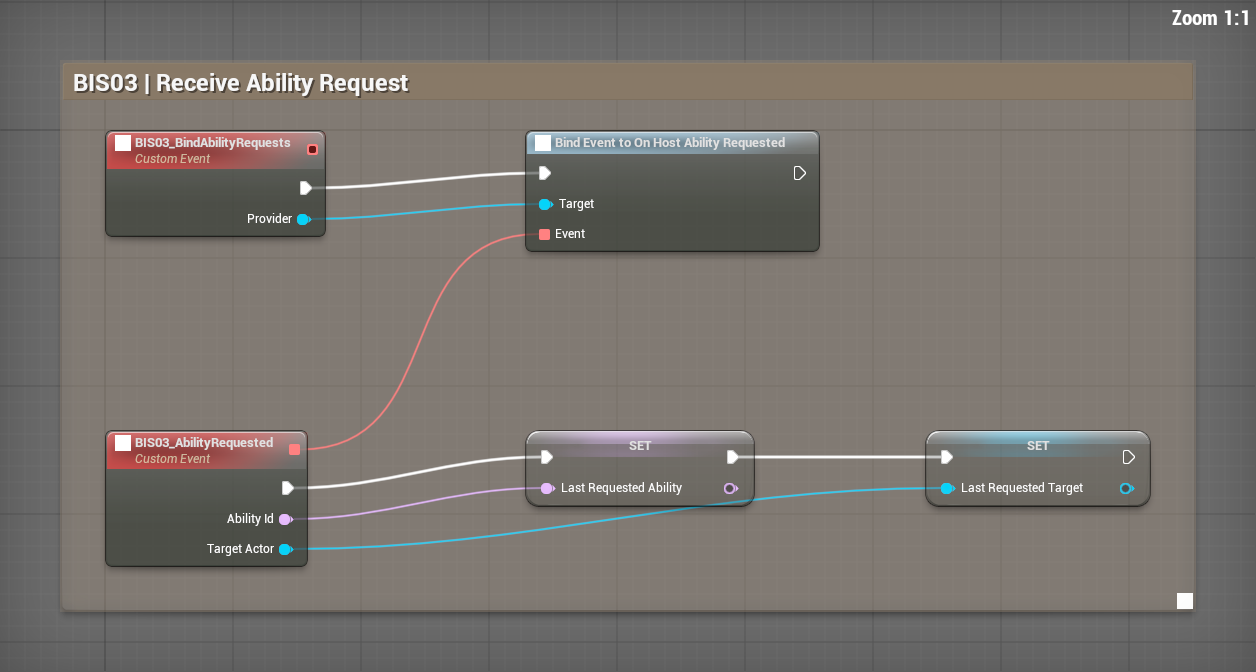
What to connect
- Call BIS03 Bind Ability Requests once with the correct HUD Provider.
- The red delegate connection points to BIS03 Ability Requested. This example records Ability Id and Target Actor in Last Requested Ability and Last Requested Target.
- Extend that receiver into your own ability logic. Validate eligibility and route server-owned gameplay through your own networking. Remove old bindings when replacing a listener.
After BIS02, the example variables contain the requested ID and selected actor. Recording them is a demonstration, not a complete combat implementation.
COMPLETE BLUEPRINT EXAMPLE 04
Show a cooldown
BIS04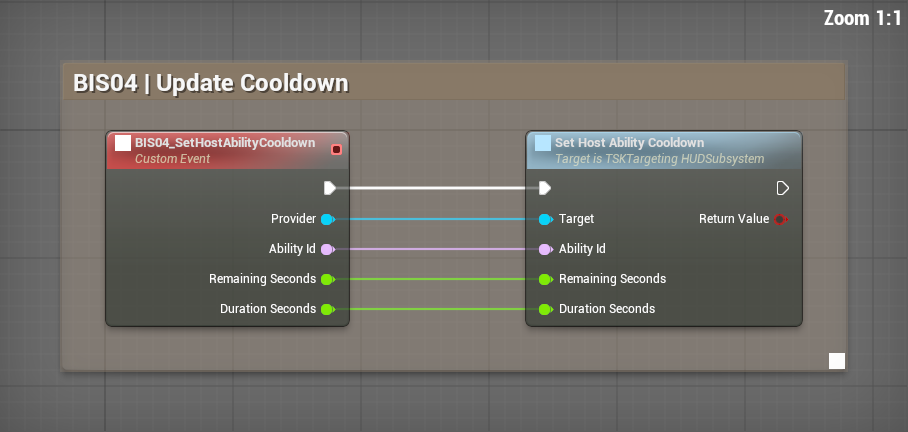
What to connect
- After your game accepts an ability, supply its stable Ability Id and the correct HUD Provider.
- Set Duration Seconds to the full cooldown and Remaining Seconds to the current time left.
- Send zero remaining time to clear the display. Keep this in step with your real cooldown system.
The kit reports the cooldown for that ID. Your game still decides whether the ability is ready.
COMPLETE BLUEPRINT EXAMPLE 05
Read the time left
BIS05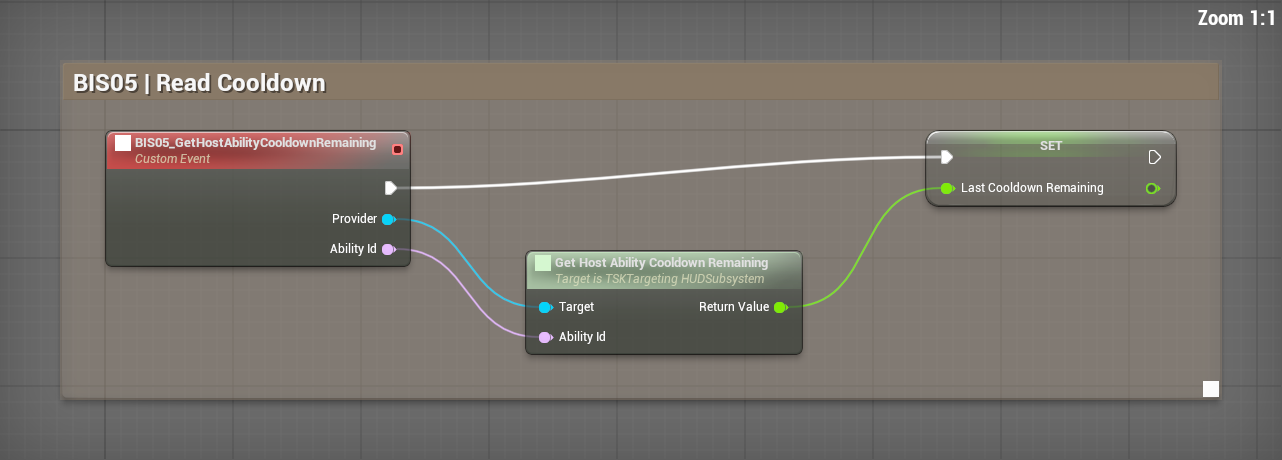
What to connect
- Provide the local HUD manager and the same Ability Id used when updating the cooldown.
- Call the example. Its green data wire carries the seconds remaining into Last Cooldown Remaining.
- Read that variable for a custom display, or use the getter directly in your own widget.
The recorded value is presentation time remaining. Do not treat a client display as multiplayer authority.
COMPLETE BLUEPRINT EXAMPLE 06
Show current buffs and debuffs
BIS06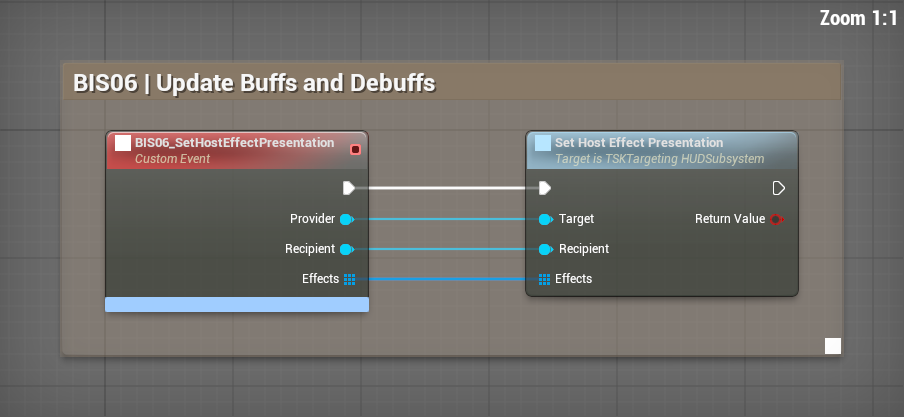
What to connect
- Provide the local HUD manager and the Recipient actor whose effects you are showing.
- Build the complete Effects list. Each entry needs a stable Effect Id, name, description, icon, stack count, remaining time and whether it is beneficial.
- Send the full list when it changes; an empty list clears it. Use current durations from your game.
Applicable displays show your effects and count down their presentation time. This node does not apply bonuses or penalties.
COMPLETE BLUEPRINT EXAMPLE 07
Start a cast display
BIS07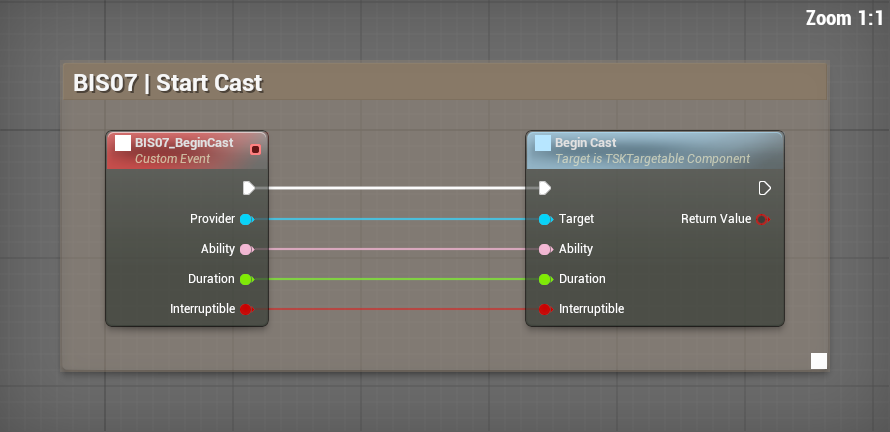
What to connect
- Provider is the caster's Targetable component, not the HUD manager.
- Supply the ability name, duration in seconds and whether this particular cast can be interrupted.
- Call when your actual cast starts. Use the same caster state for overhead, target and focus presentation.
Visible cast bars follow the actual component state. The bound player also feeds the player cast presentation.
COMPLETE BLUEPRINT EXAMPLE 08
Finish a successful cast
BIS08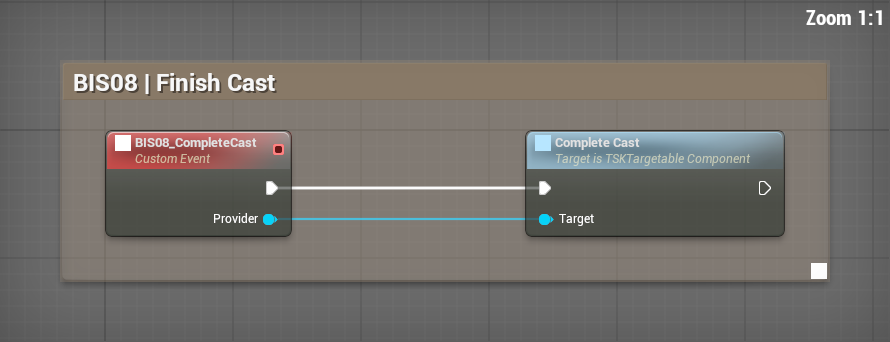
What to connect
- Keep a reference to the same caster component used by Begin Cast.
- Let your own ability finish its accepted gameplay delivery once.
- Call Complete Cast on that component to end its cast state.
The cast presentation clears. This node does not create a projectile, heal or damage event.
COMPLETE BLUEPRINT EXAMPLE 09
Cancel a cast
BIS09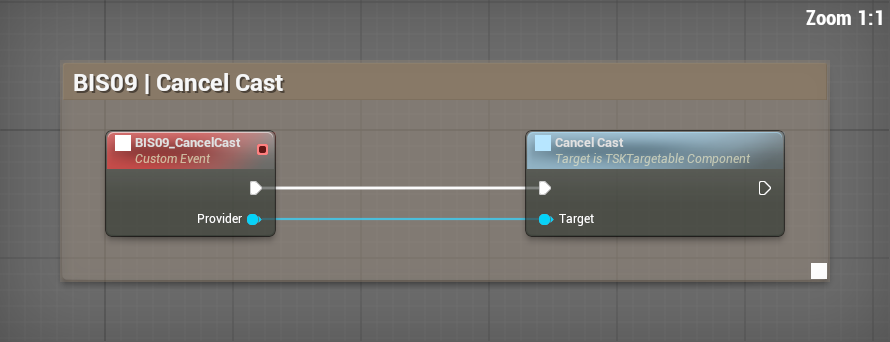
What to connect
- Provide the active caster's Targetable component.
- Call Cancel Cast when your gameplay cancels the ability.
- In your game, also cancel pending timers, projectiles or other delivery. Use On Cast Finished to handle unsuccessful completion consistently.
Cast presentation ends. A cancelled ability must not deliver its pending gameplay result later.
COMPLETE BLUEPRINT EXAMPLE 10
Interrupt an eligible cast
BIS10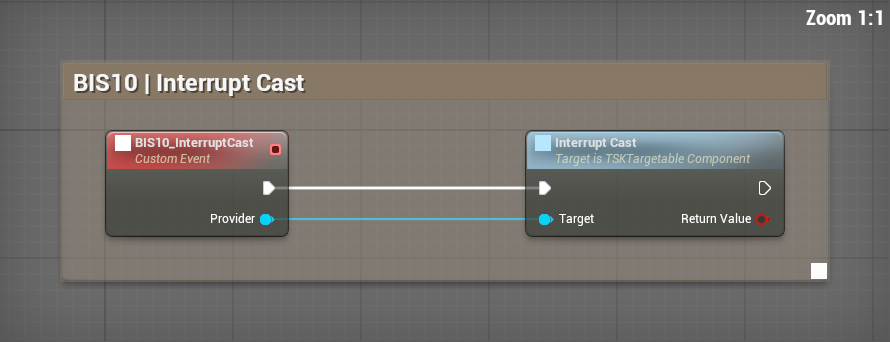
What to connect
- Your game first checks the interrupt's target, range and rules.
- Provide the target caster's Targetable component and call Interrupt Cast.
- Inspect the direct node's boolean result in your own graph. Stop pending delivery when interruption succeeds; protected or absent casts are not successful interrupts.
An interruptible active cast stops. This is not a general stun, damage or forced-movement action.
COMPLETE BLUEPRINT EXAMPLE 11
Show a damage number
BIS11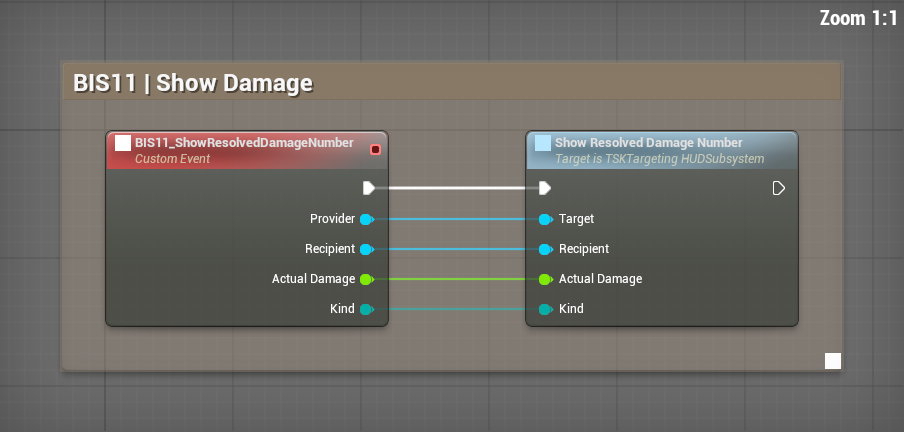
What to connect
- Apply damage once in your own system and obtain the actual amount dealt.
- Supply the local HUD Provider, the Recipient actor and Actual Damage.
- Choose the actual hit Kind: Normal, Critical or Crippling. Call once for that result.
A number appears for the result. This node does not change health, add threat or record a log event.
COMPLETE BLUEPRINT EXAMPLE 12
Show a healing number
BIS12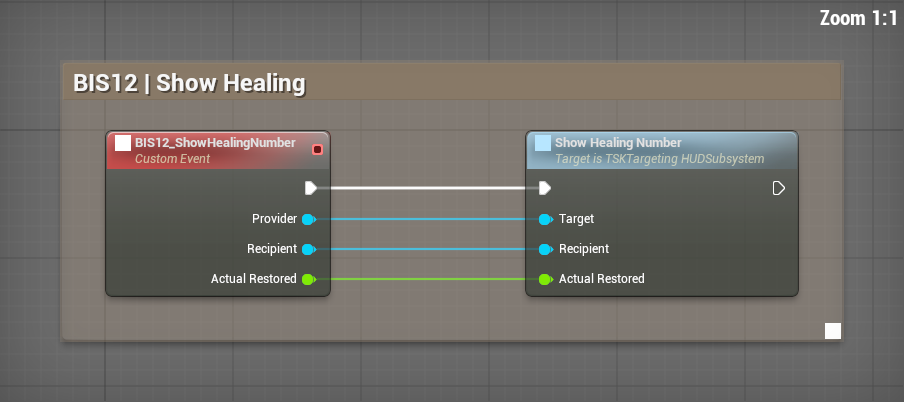
What to connect
- Heal once in your own system and calculate the health actually restored.
- Provide the local HUD manager and healed Recipient.
- Send Actual Restored without overheal. For a target at 90 of 100, a 25-point heal restores 10; display 10.
The healing number represents real restored health. This node does not perform the heal.
COMPLETE BLUEPRINT EXAMPLE 13
Update the log and meter
BIS13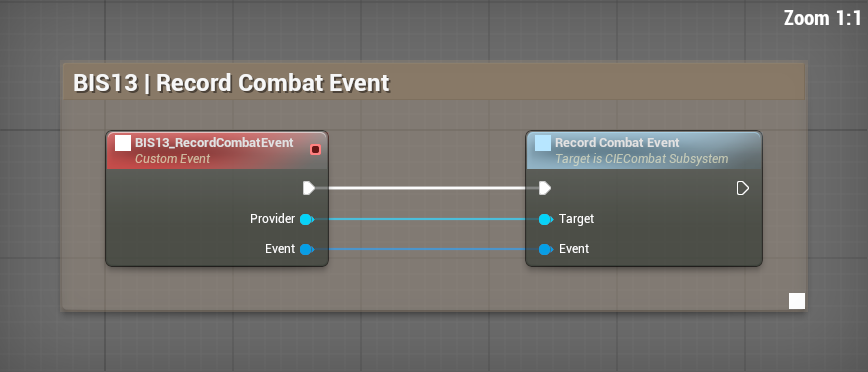
What to connect
- Provider is the CIE Combat Subsystem for this local player.
- Build the Event with stable Source Id, readable source/target/ability labels, resolved amount and the correct damage/healing/critical flags.
- Call once after resolving the event. Begin Encounter when starting a measurement window and end it when your encounter ends.
The combat log and meter receive the result. Recording the event does not apply health changes again.
COMPLETE BLUEPRINT EXAMPLE 14
Add a real threat contribution
BIS14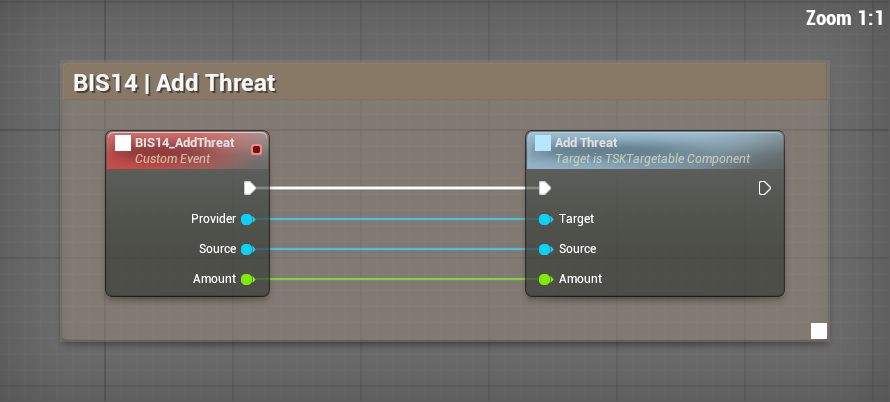
What to connect
- Provider is the threatened enemy's Targetable component.
- Source is the actor that generated the threat. Supply the accepted Amount from your game's threat rules.
- Add other real contributors in the same way. Clear threat when your encounter/reset policy requires it.
The selected target's threat display can show actual contributors. Stable actor identity keeps two identically named actors distinct.
COMPLETE BLUEPRINT EXAMPLE 15
Configure a character's combat stats
BIS15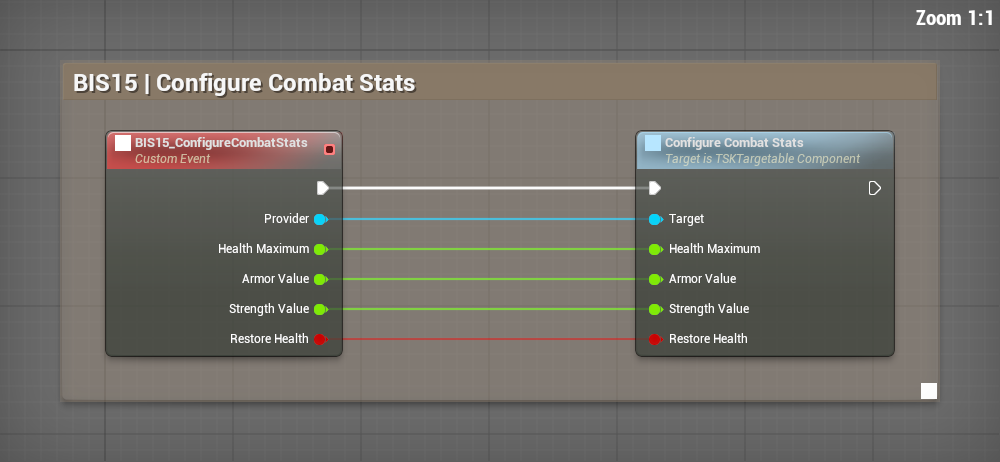
What to connect
- Use the character's TSK Targetable Component as Provider. Call this when setting up that character, not every frame.
- Supply maximum health, armor and strength. Restore Health chooses whether current health is refilled. Configure Damage Per Strength in the component defaults; zero leaves outgoing base damage unchanged.
- Keep your authoritative stat system responsible for deciding these values. Changing a display label does not change armor or damage.
The component receives the chosen stats. Restore Health controls refilling; changing maximum health is not an automatic damage event.
COMPLETE BLUEPRINT EXAMPLE 16
Apply damage through the optional health component
BIS16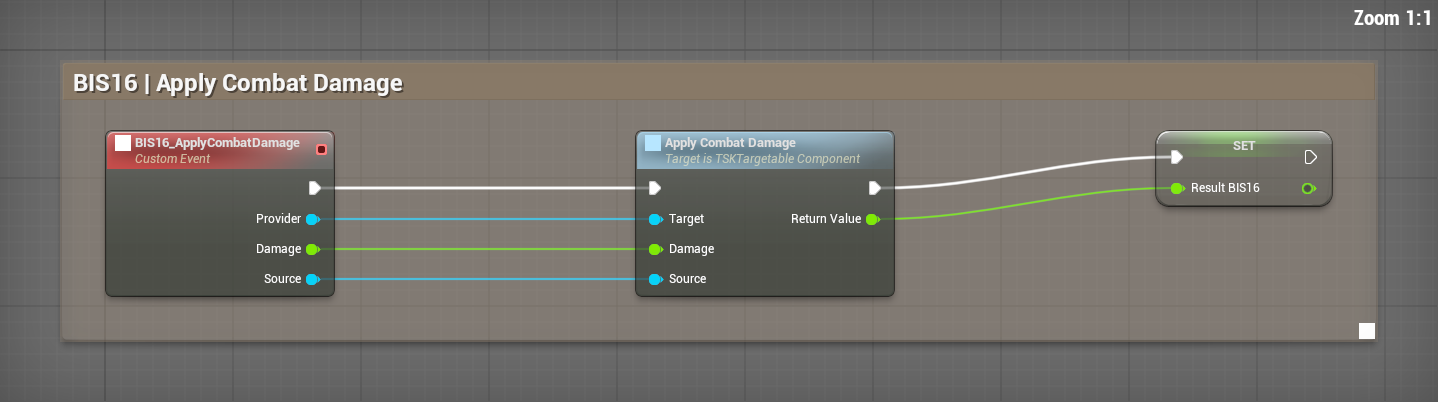
What to connect
- Provider is the victim's Targetable component. Supply nonnegative incoming Damage and the actual Source actor.
- Call once after your authoritative game accepts a hit. The component applies its armor calculation and updates health.
- Read Result BIS16 for health actually lost. Send that result to display/log hooks once. If your own health system already applied the hit, mirror health with BIS22 instead.
Health changes once, and the returned amount accounts for armor and available health. This graph does not authorize a client to deal server damage.
COMPLETE BLUEPRINT EXAMPLE 17
Resolve block, dodge or parry
BIS17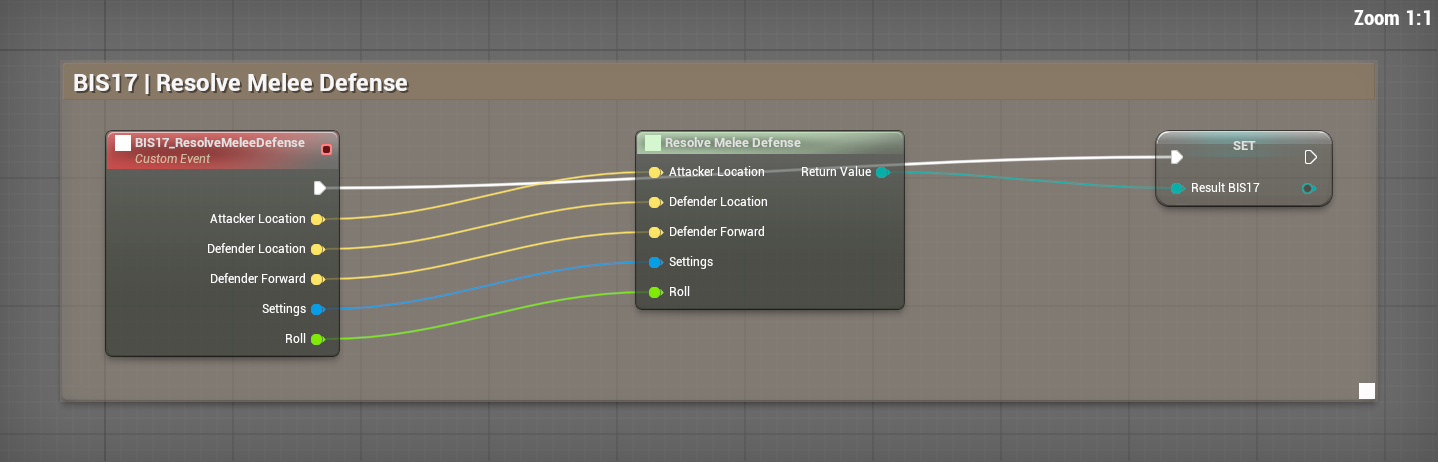
What to connect
- Supply the actual attacker and defender positions and defender forward direction, plus your chosen defense settings.
- Supply one random roll from your authoritative combat logic. This example stores the returned outcome in Result BIS17.
- Use that outcome consistently for damage and presentation. Rear attacks cannot be blocked, dodged or parried. Resolving the outcome alone does not damage anyone.
You receive one defense outcome. Use BIS25 with the same settings to obtain its damage multiplier.
COMPLETE BLUEPRINT EXAMPLE 18
Display a hit or avoidance result
BIS18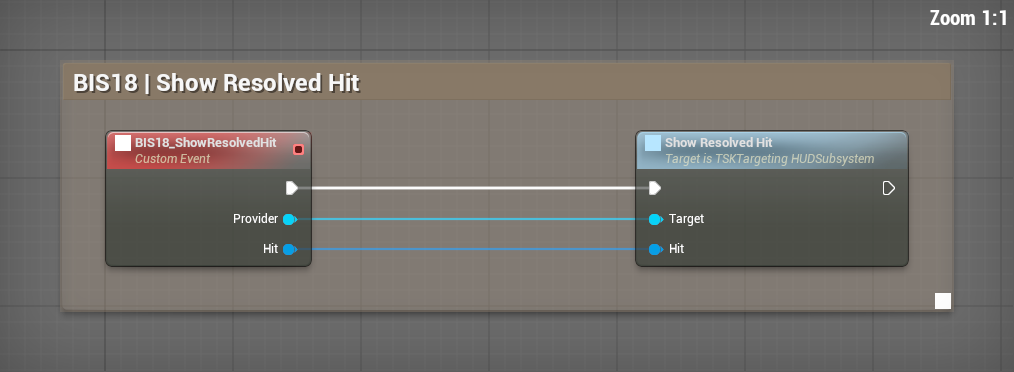
What to connect
- Connect the owning local player's TSK Targeting HUD Subsystem to Provider.
- Connect a complete Hit result, carrying Source, Target, Ability, Kind, Applied Damage and Defense. Existing result events can supply this structure. For a simple amount from your own system, use Show Resolved Damage Number instead.
- Call once after resolution. Apply damage through your chosen health owner and record the combat event separately when required.
The floating feedback reflects the resolved result; this display function does not apply health changes or record a combat-log event.
COMPLETE BLUEPRINT EXAMPLE 19
Select or clear a target
BIS19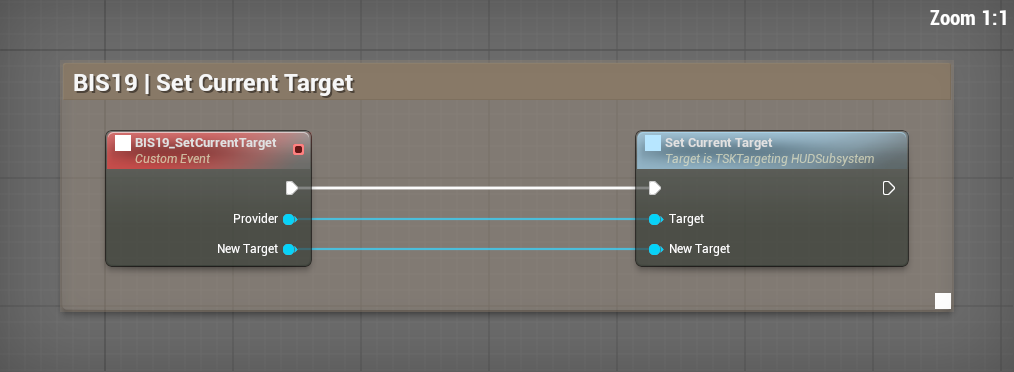
What to connect
- Connect the correct local HUD manager to Provider.
- Supply the target actor's Targetable component. A null component clears selection.
- Call from your own selection UI. Continue to validate hostility, range, facing and obstruction when resolving an action.
Selection changes without automatically approving an attack.
COMPLETE BLUEPRINT EXAMPLE 20
Set a focus target
BIS20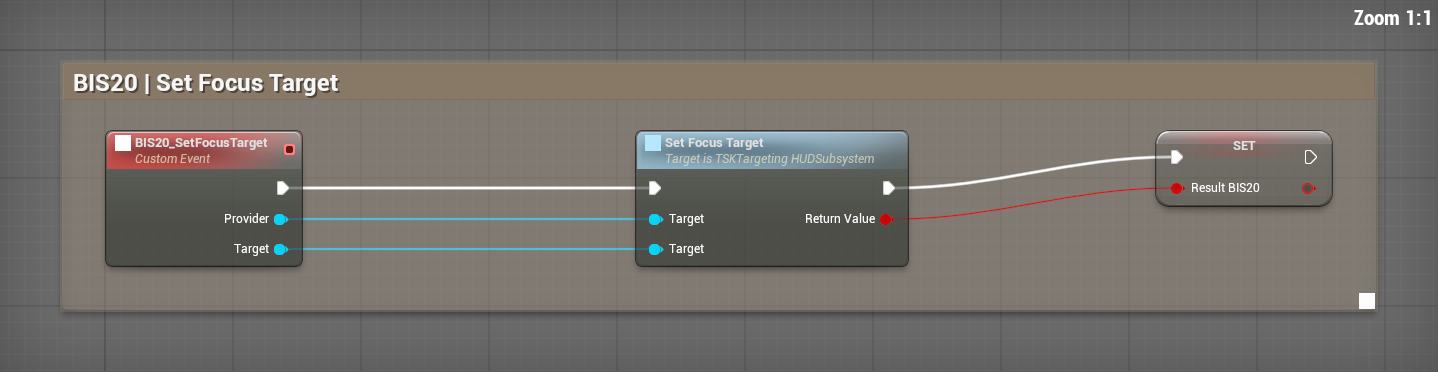
What to connect
- Provide the local HUD manager and the desired actor's Targetable component.
- Call the example and check Result BIS20 rather than assuming the requested focus was accepted.
- Use Clear Focus Target on the same HUD manager when dismissing focus or cleaning up your encounter.
The focus display follows the accepted target and its cast/resource state.
COMPLETE BLUEPRINT EXAMPLE 21
Assign an overhead marker
BIS21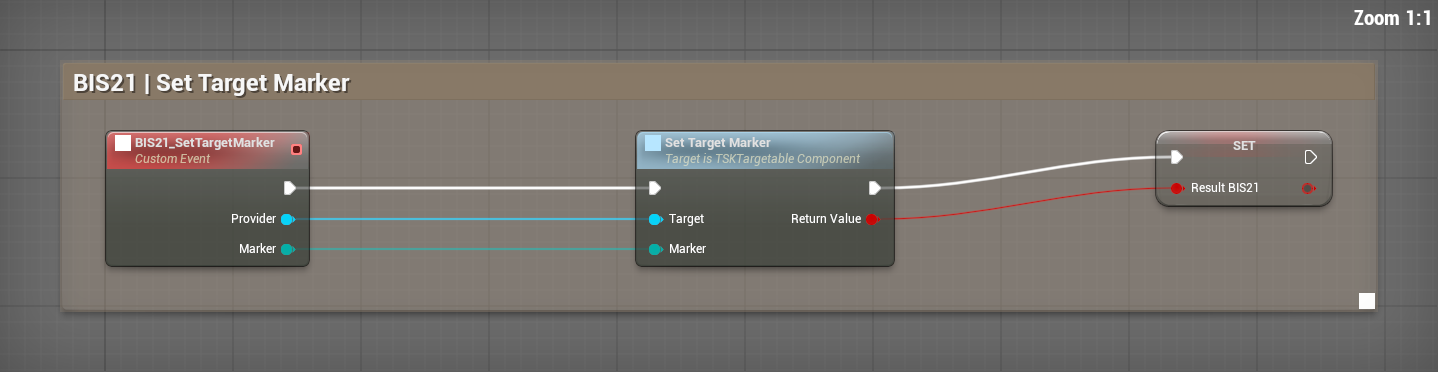
What to connect
- Use the marked character's Targetable component as Provider.
- Choose the marker enum value. Use None to remove an existing mark.
- Call when your game accepts the mark change. Keep any multiplayer ownership and replication in your game.
The selected marker changes presentation; it does not alter faction or damage eligibility.
COMPLETE BLUEPRINT EXAMPLE 22
Mirror health from your existing game
BIS22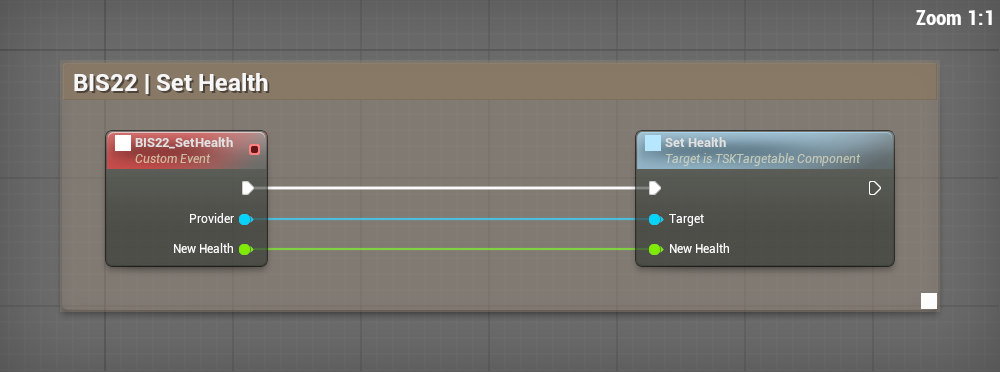
What to connect
- Set the character's Max Health first and use its Targetable component as Provider.
- Supply the current health value after your existing system has processed damage or healing.
- Call when health changes. Do not additionally apply the same hit through BIS16.
Health displays follow your authoritative current value without applying the hit a second time.
COMPLETE BLUEPRINT EXAMPLE 23
Mirror mana from your existing game
BIS23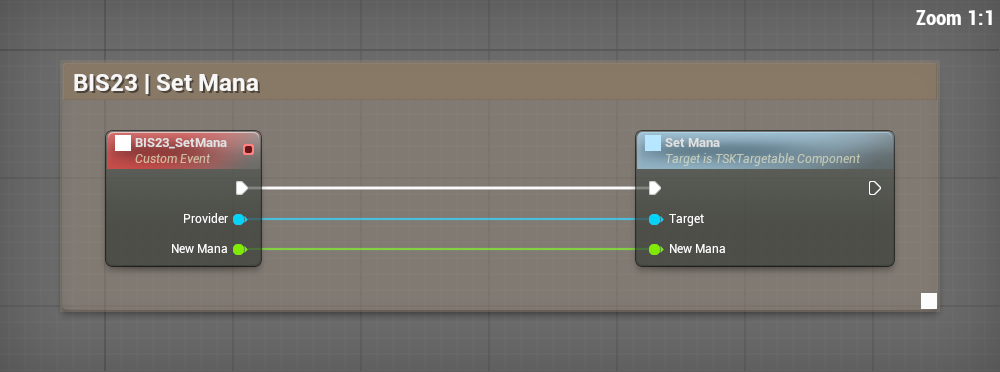
What to connect
- Configure Uses Mana and Max Mana on the character's Targetable component.
- Supply that component as Provider and the actual current mana after spending or regenerating it.
- Disable Uses Mana for characters that do not use this resource. Do not fake a mana bar for the Juggernaut.
Applicable mana displays follow the supplied resource value.
COMPLETE BLUEPRINT EXAMPLE 24
Add custom target information
BIS24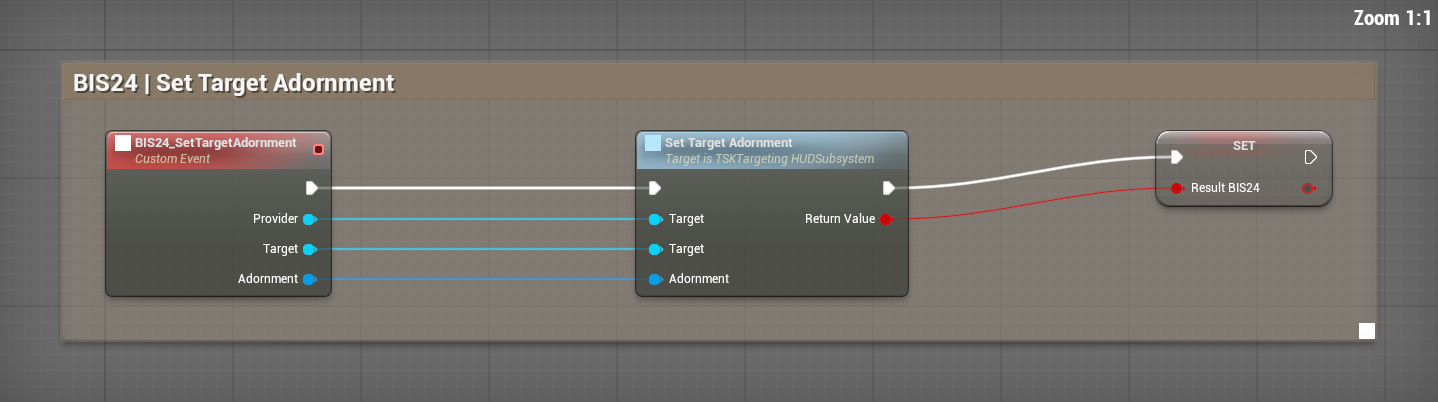
What to connect
- Use the owning local player's HUD manager as Provider.
- Connect the character's Targetable component to Target. Make a TSK Target Adornment structure with your Texture, Height and Gap, then connect it to Adornment. Fixed Screen Pixels is optional; leave Visible Bottom UV at 1 unless accounting for transparent padding.
- Call Clear Target Adornment during cleanup so information from a previous target is not left behind.
Your additional target presentation is available without changing selection eligibility.
COMPLETE BLUEPRINT EXAMPLE 25
Use the resolved defense result
BIS25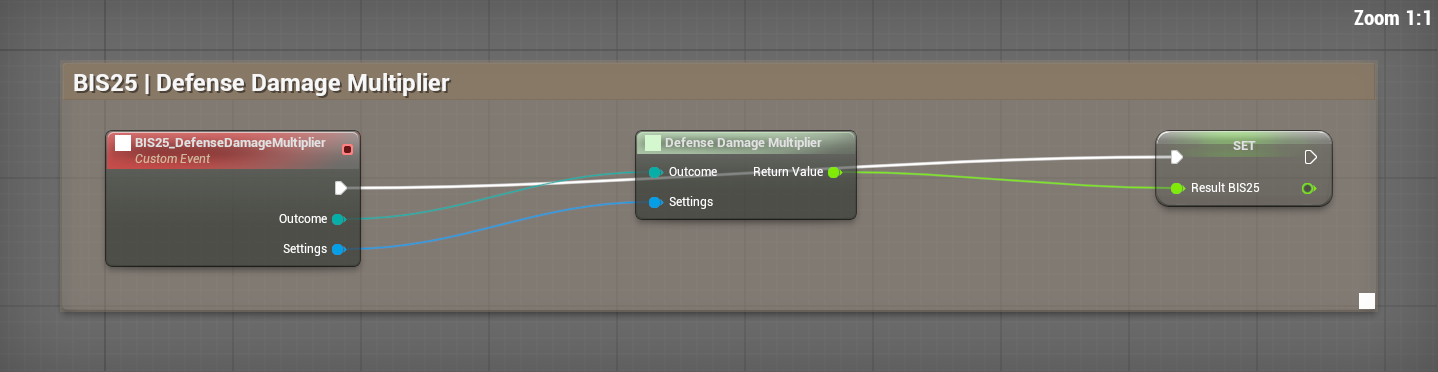
What to connect
- Supply the defense outcome resolved by BIS17 and the same defense settings.
- Read Result BIS25 and multiply the incoming damage by this value once.
- Pass the resulting damage to your chosen health owner. Keep avoidance, mitigation and floating feedback consistent.
You receive a multiplier; this pure calculation does not apply damage.
COMPLETE BLUEPRINT EXAMPLE 26
Reset an encounter's threat
BIS26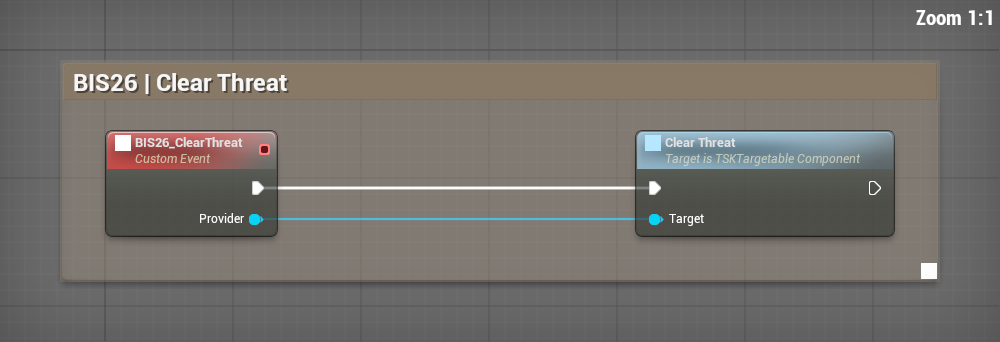
What to connect
- Supply the encounter target's Targetable component as Provider.
- Call during your encounter reset or cleanup when its contributor ledger should be cleared.
- Synchronize your own authoritative threat data separately in a networked game.
The component's local threat ledger is cleared; no fabricated contributor is added.
If something does not work
I cannot find the Blueprint
Enable Show Plugin Content, select All, clear filters and search BP_BIS_TC_IntegrationExamples. The function Bind Host Player is not a Content Drawer asset. Once inside the example, use Ctrl+F with BIS01 or open its named graph tab.
The player frame shows the wrong health
Confirm that Bind Host Player received the currently possessed pawn's Targetable component. Copy current health after your own system changes it. Rebind when replacing the pawn. The Provider must belong to the same local player.
An ability request does nothing
Bind your receiver before requesting the ability. The included BIS03 receiver only records the requested ID and actor, so you can inspect them. Replace or extend it with your own validated ability router. A request without a listener is not an executed ability.
The cast bar finishes but nothing happens
The kit shows casting state; your game performs delivery. Call Complete Cast after successful delivery. Bind On Cast Finished to stop your own pending delivery when the cast fails or is interrupted. The component also completes its display automatically when its duration expires. A successful On Cast Finished notification confirms that display lifecycle, not server-approved spell delivery. Do not apply damage merely because a bar reached the end.
Numbers or totals are doubled
Check that your game applies health changes once, that Show Resolved Damage Number is called once for display, and that Record Combat Event is called once for the log/meter. Remove duplicate listeners and duplicate input routes.
Old effects remain after respawn
Send the complete current effect list, clear it when appropriate, and bind the replacement pawn. Do not carry a dead actor's effect list into the new life.
My changes disappear or do not appear
Check whether you changed project defaults or a saved profile. Confirm the relevant panel is enabled and that preview visibility is not masking live behavior. Compile and save your own Blueprint copy.
Before using this in your game
A useful first check
Connect your own pawn, change its health and resource values, request one ability through your own button, show its cast and cooldown, then cancel it. Replace the pawn and confirm the new binding works. Check target changes, effect expiry and one damage event without duplicate totals.
Networked games
These examples show local presentation and event routing. They do not provide automatic replication or a server-authoritative combat framework. Send accepted results from your game's networking to the correct local player's presentation.
Your own action bar
Use stable ability IDs in your buttons and drag/drop receiver. The preview catalog supplies a reusable payload, but a compatible receiver still needs to connect it to your game. Full integration with an arbitrary action-bar product is not implied.
Packaging
Keep the plugin dependencies enabled and make sure your own meshes, textures, animations, abilities and reference assets are included in your packaged game. A successful editor graph compile is not a packaged-game test.
Support
Contact support.blackironspine@proton.me with your Unreal version, the graph you used, what you expected and what actually happened. Include a readable full-graph screenshot where useful. Keep secrets and account credentials out of your report.